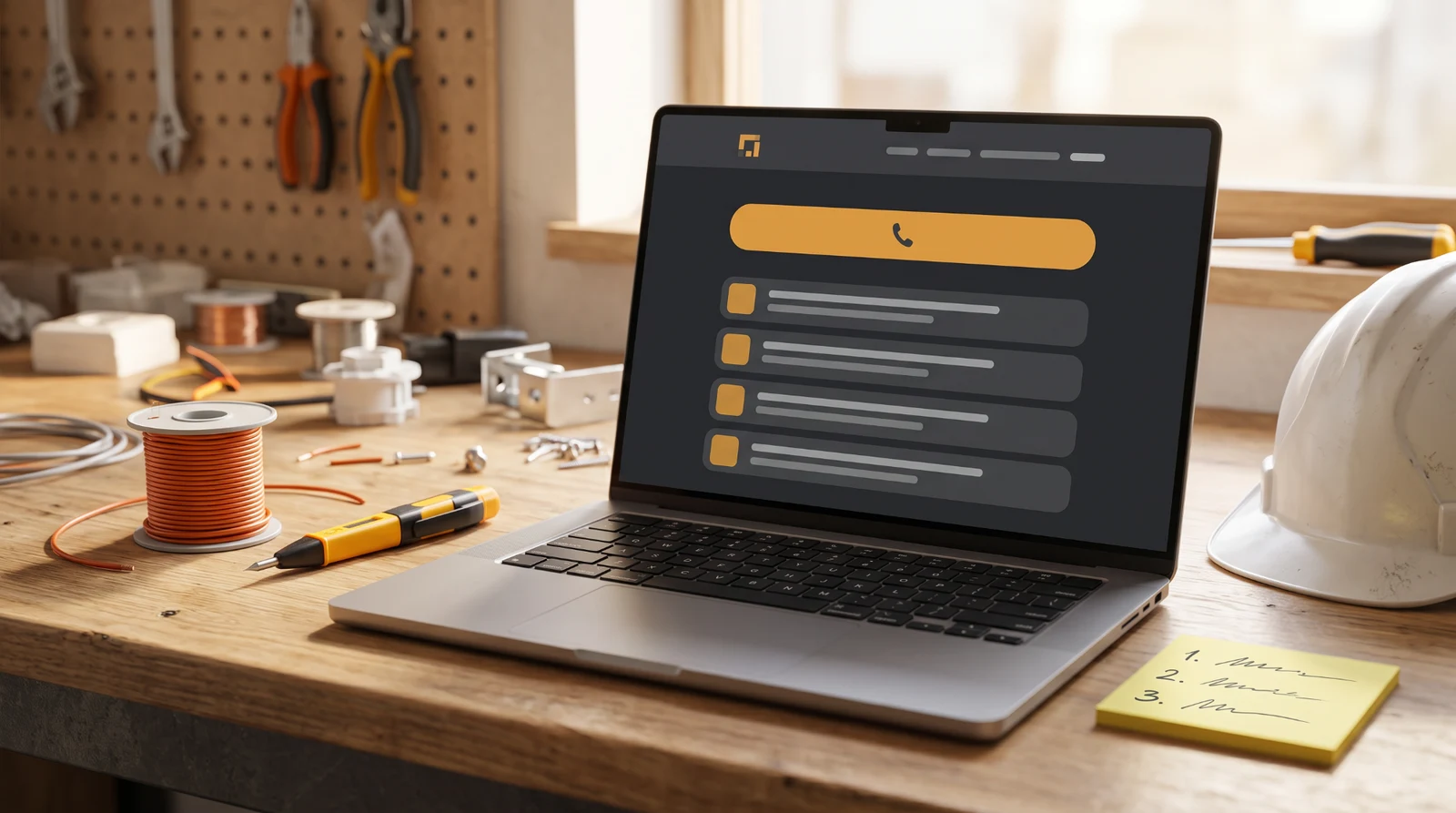
If you are an electrician building your first website, start with the questions a customer would ask before calling.
Do you handle this kind of work? Do you cover my area? How do I contact you? What gives me confidence that you can do the job?
Those questions give you the outline of a useful website. You can describe what you need in ordinary language, then use Blockora to create a first version.
This guide explains how to make a website in minutes with AI, including a prompt you can copy. Allow time for your own content and launch decisions too. Generating pages is only part of getting ready to publish.
The electrician business below is fictional. Replace every bracketed detail with your own information.
1. Write two sentences about your business
You do not need to start with a page list or a colour scheme.
Write what you do, where you do it and who you work for. Then say what you want a visitor to do.
For example:
I am an electrician serving homeowners in [town] and [nearby areas], offering [your actual services]. I want customers to call me or request a quote through the website.
Be specific about your limits. If you do not offer emergency callouts, leave them out. If you only cover certain postcodes, say so.
These two sentences help keep the website focused. A visitor should not have to read several paragraphs to discover whether you can help them.
2. Copy a prompt with useful detail
A weak prompt gives the builder very little to work with:
Make me a professional electrician website.
It names a trade but leaves the services, location and purpose open to interpretation.
Use this stronger prompt as a starting point:
Create a website for [business name], an electrician serving
homeowners in [town] and [specific nearby areas].

Our services are [list only services you actually provide].
The main goal is to help visitors call [business phone number]
or send a quote request.

Use plain, friendly language. Make the text easy to read on a
phone, with clear headings and a prominent tap-to-call link.

Include:
- An introduction explaining what we do and where we work.
- A services section.
- An area-served section.
- A trust section using only the verified details I provide.
- A quote form asking for name, contact details, postcode
  and a short description of the job.
- Contact details.

Verified business details:
[Add your real business information here.]

Do not invent reviews, licence numbers, qualifications,
years of experience, prices or emergency availability.
Leave a clear placeholder where information is missing.
The stronger prompt works for three reasons:
- It names the customer and location. The site has a specific audience rather than an unspecified visitor.
- It gives the website a job. Calls and quote requests guide what needs to appear prominently.
- It sets boundaries for the content. Verified details and explicit exclusions make the result easier to check.
You can use the same structure for another trade. Replace the services and trust information with details appropriate to your business.
3. Check the plan before building
Blockora lets you review the plan before generating the site.
Read it as a customer. Would you understand the business without already knowing the owner? Can you see where to find services, coverage and contact information?
Look for unnecessary pages. If two sections answer the same question, consider combining them. A first website should be manageable enough that you can check every line.
Once the plan matches your business, start the build.
4. Add the trust basics
A visitor needs enough information to decide whether to contact you. Check these five parts of the first version.
A tap-to-call link
Make your business number easy to find and tap on a phone.
Put it near the main introduction and in the contact section, with a label that makes the action clear.
Clear services
Use the names customers use when asking for work.
List only services you offer. Explain anything that may be unfamiliar, and avoid making the customer work out whether a broad heading covers their particular job.
The area you serve
Name your town and the nearby places or postcodes you cover.
If you travel farther for certain jobs, explain how a customer should ask about availability. Do not imply nationwide coverage if you work locally.
Genuine trust information
Add relevant licence or registration details where applicable. Use reviews only when they are genuine and you have permission to publish them.
If you do not have reviews yet, leave them out. Accurate business details and a clear explanation of your work are more useful than invented praise.
A quote form
Ask for enough information to respond: a name, contact details, location and a short description of the job.
Blockora includes forms with an inbox and email alerts. A quote request starts a conversation. Make it clear if you need to discuss or inspect the work before giving a price.
5. Edit by chat or by hand
Read the generated copy from beginning to end.
You might ask in chat:
Shorten the introduction and make the quote request easier to find.
Or:
Remove references to emergency callouts. We only take scheduled appointments.
For a small wording correction, edit by hand. Hand edits cost no credits.
Then check the layout on your phone. Look for text that is hard to read, buttons with unclear labels and contact details that take too long to find.
6. Publish, connect your domain and share the link
Hosting and SSL are included with Blockora. You can publish on a Blockora address with the Free plan, or connect a domain you own on Plus or Business.
A custom domain connection and ownership of a domain are separate things. Check your domain arrangements and the current plan details before choosing how to publish.
Use this six-item launch checklist to finish the job:
Publish your site and, if you are using your own domain, connect it using the instructions in your account.
Open the final address on your phone. Read the layout and tap the phone link to confirm it opens the right number.
Confirm your business name, services, coverage, qualifications, reviews and contact details match your actual business.
Send one test quote request using contact details you control. Confirm the submission reaches your inbox and the email alert arrives.
Add the final website address to your Google Business Profile, if you manage one, using consistent business and contact information.
Share the link where customers already find you, and set a reminder to update the site when services or hours change.
For the product overview, read our introduction to Blockora.